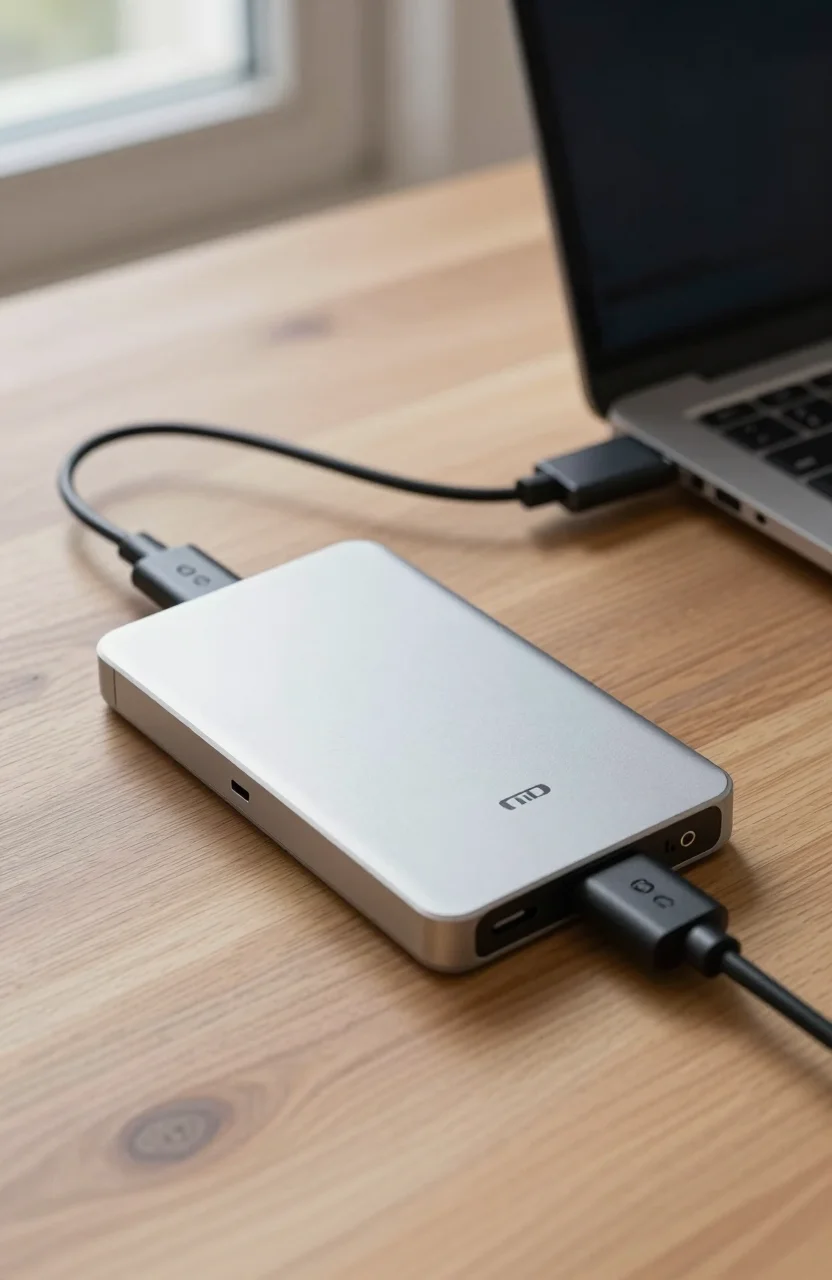
You start a full backup, walk away, and come back hours later wondering if something stalled. Backup time is not one magic number. It depends on how much data you copy, the media (HDD or SSD), the USB link, and whether your software does full file copies or incremental changes.
This guide gives practical speed ranges and rough time estimates for common setups. Use them as planning numbers, then check your own case with the backup time calculator.
What actually drives backup duration
Three factors matter most for wall-clock time.
First, data size. A 250GB Documents folder and a 4TB photo archive are different jobs. Your software may also skip unchanged files on later runs, so the first full backup is usually the slow one.
Second, the slowest link in the path. If your laptop SSD can push data fast but the target is a spinning external hard drive on USB 3.0, the HDD and the USB bus set the pace.
Third, file mix. Millions of tiny files are slower than a few large video files at the same total size, because of metadata overhead. Encryption, compression, and cloud uploads add more time on top of raw disk speed.
Network backups to a NAS add another bottleneck: Wi-Fi rates, Ethernet duplex, and RAID rebuilds can make a local USB drive look fast by comparison. If your overnight job never finishes, separate "disk speed" problems from "network speed" problems before you buy new hardware.
USB 3.0 vs Gen2 vs Gen2x2 in plain terms
Marketing labels are noisy. For backup planning, think in realistic sustained throughput, not the peak number on the box.
- USB 3.0 / USB 3.1 Gen1 (5 Gbps): common on older ports and many budget enclosures. Sustained backup to an HDD often lands around 80-140 MB/s when the drive is healthy and the cable is solid.
- USB 3.1 Gen2 / USB 3.2 Gen2 (10 Gbps): better headroom for portable SSDs. Real sustained writes often sit around 400-900 MB/s depending on the drive and host.
- USB 3.2 Gen2x2 (20 Gbps): useful when both host and enclosure support it. Top portable SSDs can sustain well over 1000 MB/s, but only if your port is truly Gen2x2, not a cable or hub that silently drops to Gen2.
A Gen2 enclosure on a Gen1-only port will behave like Gen1. Before you blame the drive, confirm the port, the cable, and whether a dock is in the middle.
Thunderbolt docks and USB4 hosts can be faster still, but only when the enclosure and cable match. For most home backups, getting a clean USB Gen2 path without a cheap unpowered hub already recovers most of the speed you lost.
HDD vs SSD: realistic MB/s for backups
Spinning drives remain the usual pick for cheap capacity. External HDDs often sustain roughly 100-160 MB/s on a good USB 3.0 or Gen2 link for large sequential writes. Random small-file jobs can fall well below that.
Portable SSDs change the picture. A midrange USB SSD might sustain 400-700 MB/s. A faster Gen2 or Gen2x2 model can push 800-1500+ MB/s for large sequential copies. For long-term cold archives, also weigh durability and cost per TB; our guide on HDD vs SSD for long-term archiving covers that trade-off.
For overnight full backups of multi-terabyte libraries, HDDs are usually fine. If you need to finish a 1TB job during a lunch break, an SSD target is the practical upgrade.
Do not mix expectations: an internal NVMe boot drive at 5000 MB/s will not make your USB HDD backup finish five times faster. The destination (and USB stack) still caps the job.
Rough times for 1TB and 4TB (estimates)
These are planning estimates for mostly sequential data on a healthy system. Your results will differ with file count, CPU load, and backup software settings. Label every number below as an estimate, not a guarantee.
| Scenario | Approx. speed | 1TB estimate | 4TB estimate |
|---|---|---|---|
| External HDD, USB 3.0 | 120 MB/s | ~2.3 hours | ~9.3 hours |
| External HDD, stronger sequential run | 150 MB/s | ~1.9 hours | ~7.4 hours |
| Portable SSD, USB Gen2 | 500 MB/s | ~34 minutes | ~2.3 hours |
| Fast portable SSD, Gen2x2 | 1000 MB/s | ~17 minutes | ~1.1 hours |
Rule of thumb: at 100 MB/s you move about 360 GB per hour. At 500 MB/s you move about 1.8 TB per hour. If your first full backup of 1TB takes six hours on an HDD, you likely have many small files, a weak cable, or background throttling rather than a "broken" drive.
Incremental backups after that first run can finish in minutes if only a few gigabytes changed. That is why a solid weekly routine beats one giant annual dump. For structure and offsite copies, see building a disaster-proof backup routine.
How to get a trustworthy number for your setup
Do not guess forever. Time one representative job.
- Note the exact bytes copied (backup software logs help).
- Note elapsed minutes from start to finish.
- Divide size by time to get your effective MB/s.
- Plug that rate into the backup time calculator for larger jobs.
If the measured rate is far below the table above, check cable quality, direct motherboard ports instead of unpowered hubs, drive health, and whether antivirus is scanning every file mid-copy. Closing heavy apps during the first full backup also helps.
When you shop for a new target drive, match capacity to your data plus headroom, then match interface to the ports you actually use. A fast SSD on a USB 2.0 leftover port will still crawl. Leave 20% free space on HDDs when you can; nearly full volumes often slow sustained writes.
Practical takeaways
Expect multi-hour full backups on multi-terabyte HDDs. Expect much shorter windows on portable SSDs if your USB path can keep up. Treat published peak speeds as upper bounds, not promises. Measure once on your machine, then plan overnight jobs or SSD upgrades with confidence.
If you only remember one habit: schedule the first full backup when you can leave the PC alone, verify the copy finished, then rely on incrementals. That single change usually removes the "why is this still running?" stress from home and small-office backups.
Pair the time estimate with a restore test on a sample folder. A fast backup that you never verified is still a risk. Once you know both how long a full run takes and that restores work, you can size drives and overnight windows without guessing.