Why Organizing Your Photos Matters
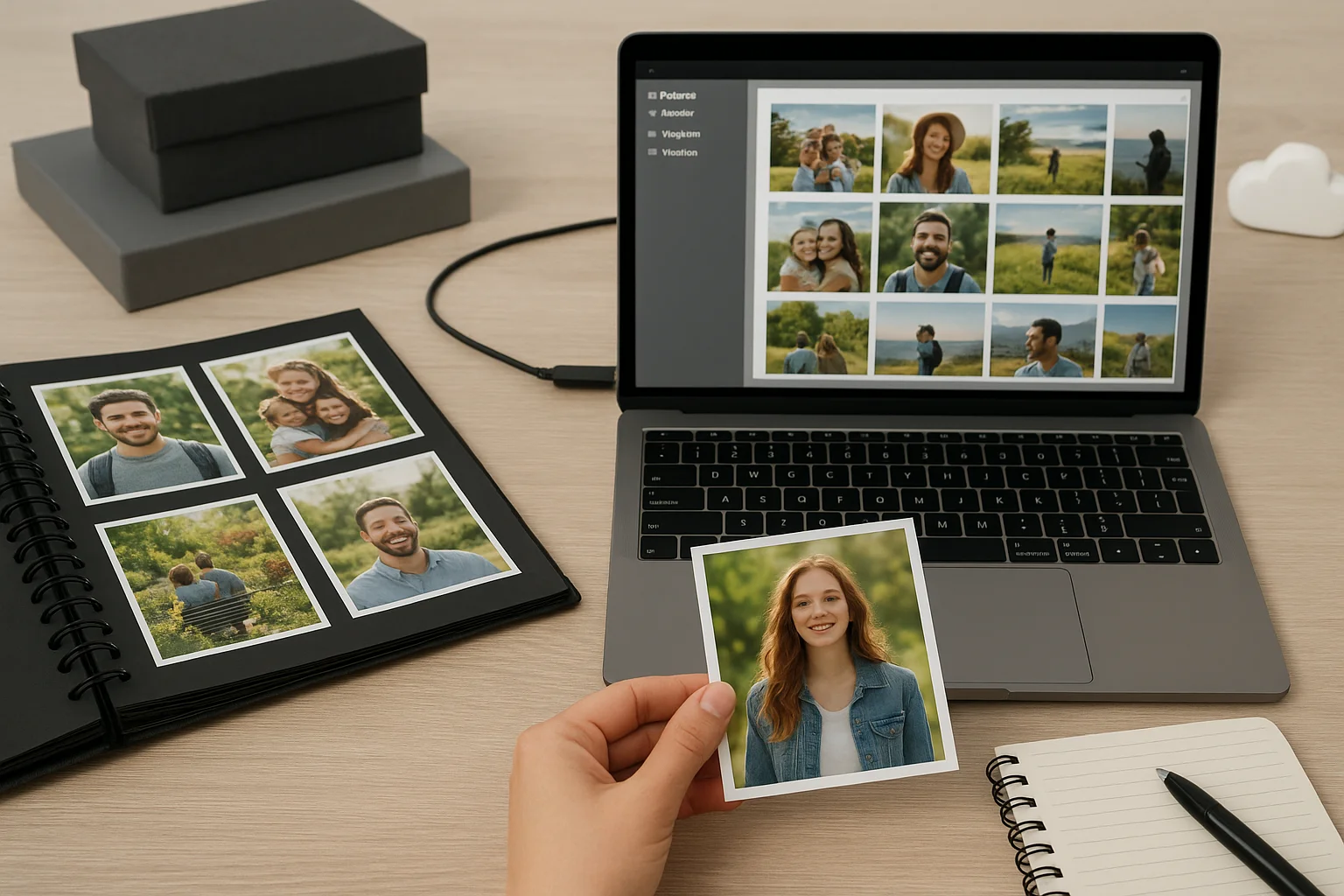
Over time, a digital photo library can become overwhelming. Thousands of images stored across multiple devices without a clear structure make it difficult to find specific memories when you need them. An organized library allows you to quickly locate photos from a particular event, date, or person, saving time and reducing frustration.
Beyond convenience, proper organization also plays a crucial role in preserving your memories. Photos stored haphazardly are more prone to accidental deletion or loss, and without a structured system, it becomes challenging to implement reliable backup strategies.
Another important aspect is efficiency in workflow. Whether you are a casual photographer or a professional, having a consistent folder structure, naming conventions, and tagging system enables faster editing, sharing, and printing of images. It also facilitates collaboration if you are working with clients or family members who need access to your library.
Moreover, an organized photo library enhances your digital storytelling. Being able to quickly group photos by theme, event, or location allows you to create albums, slideshows, or social media posts without the stress of sorting through a chaotic collection.
Finally, organization is a key factor in implementing effective backup and recovery strategies. When files are logically arranged, it becomes much easier to identify critical photos, ensure all important images are backed up, and restore them efficiently in case of hardware failure or accidental loss.
Choosing the Right Storage Solutions
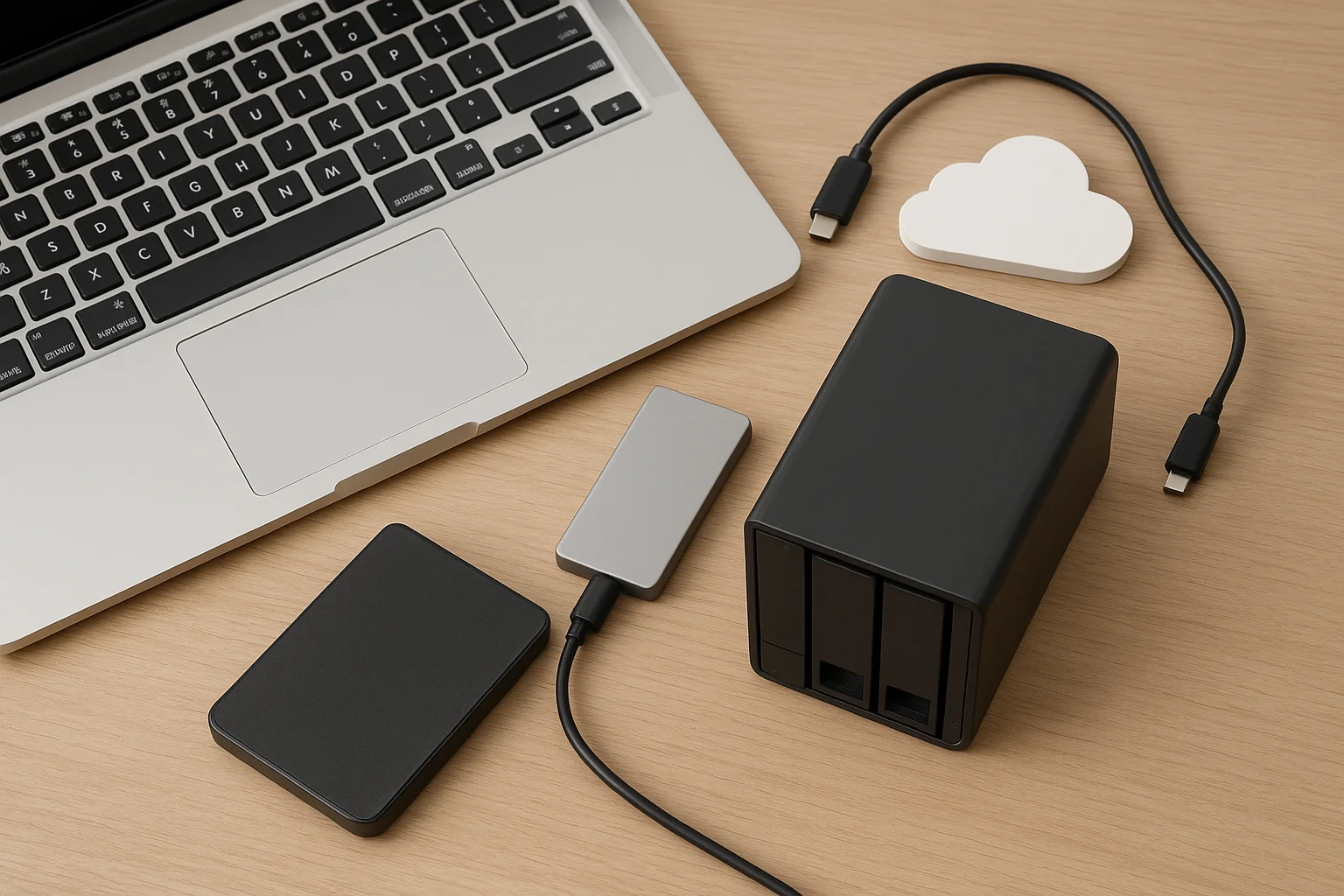
Selecting the right storage solution is a critical step in managing your photo library. With the increasing volume of digital photos, relying solely on a computer’s internal hard drive can quickly become insufficient. Understanding the different types of storage options helps you balance capacity, accessibility, and security.
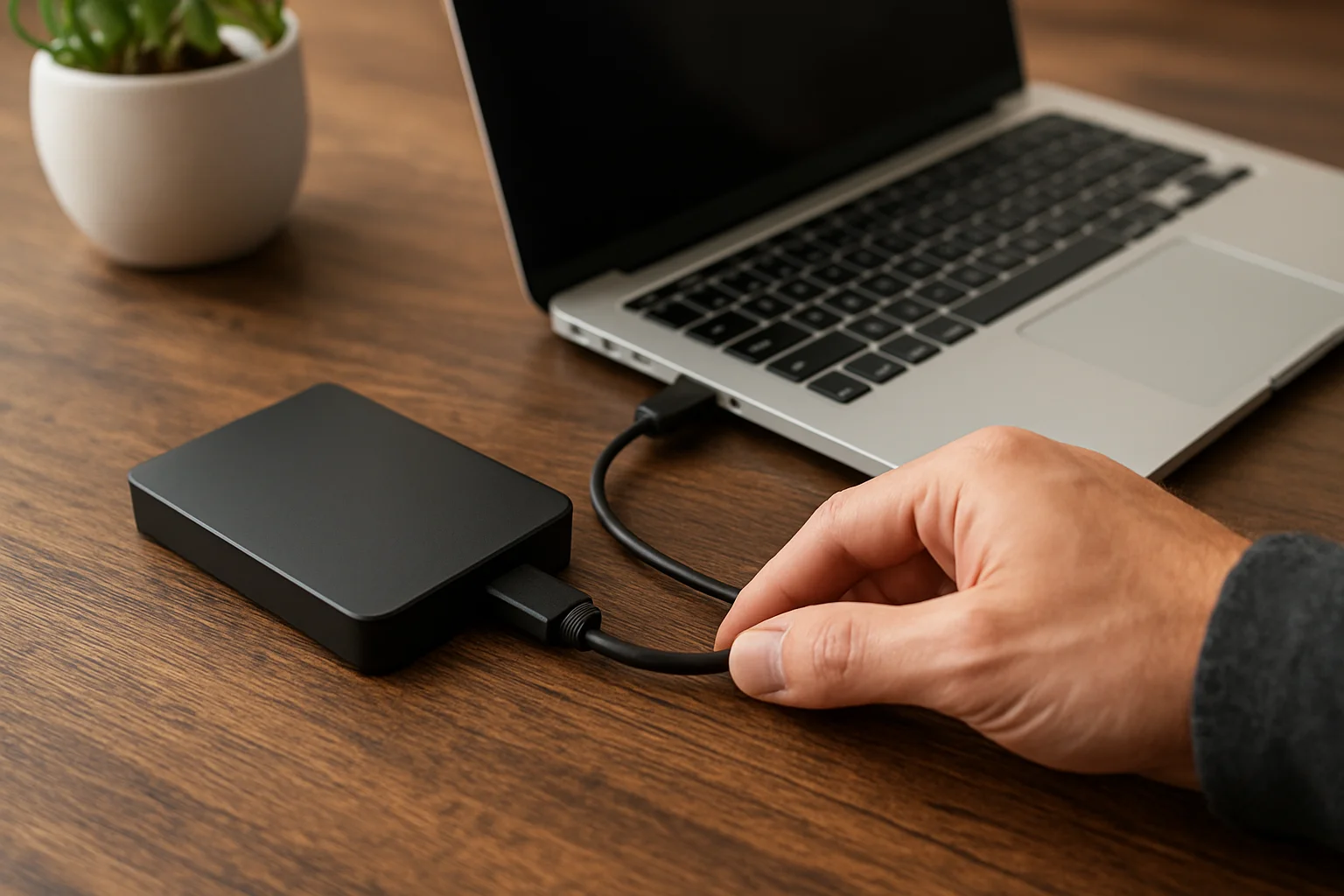
External Hard Drives: These offer large storage capacity at a relatively low cost. They are ideal for backing up entire libraries and keeping your primary device free of clutter. Look for drives with reliable brands, high-speed connections like USB 3.0 or USB-C, and durable construction to ensure longevity.
Solid State Drives (SSDs): SSDs are faster and more shock-resistant than traditional hard drives, making them excellent for active photo editing and transportable storage. Although they are generally more expensive per gigabyte, their speed and durability make them worth considering for professional or high-volume users.
Network Attached Storage (NAS): NAS devices allow multiple devices to access a centralized storage location over a local network. They are particularly useful for collaborative projects or households with multiple photographers. Many NAS systems also offer built-in redundancy and automated backup options, providing an extra layer of data protection.
Cloud Storage: Cloud services, such as Google Photos, iCloud, or Dropbox, provide easy remote access and off-site backups. They are excellent for ensuring your photos are safe in case of local hardware failure. When choosing a cloud provider, consider storage limits, subscription costs, data encryption, and ease of synchronization with your devices.
Ultimately, the best approach often involves a combination of these solutions. Using local storage for quick access and cloud storage for off-site backup ensures that your photo library is both accessible and protected against loss or damage.
Creating a Consistent Folder and Naming System
Establishing a clear and consistent folder structure is essential for keeping your photo library organized. A well-thought-out system allows you to locate images quickly, avoid duplication, and implement reliable backups efficiently. Start by deciding on a hierarchy that suits your needs, such as organizing by year, event, or category.
Folder Structure: Begin with broad categories at the top level, such as years (e.g., 2025, 2026), and then create subfolders for events, trips, or projects (e.g., 2025/Vacation_Hawaii). For professional photographers, adding client or project-specific folders can help maintain a professional workflow and simplify file sharing.
Naming Conventions: Using consistent file names is equally important. A good practice is to include the date and a short descriptive keyword in each file name, for example: 2025-07-15_Hawaii_Beach.jpg. This makes searching by date or keyword intuitive and reduces confusion when managing thousands of files.
Consider also implementing version control for edited photos. For instance, adding a suffix like _edit1 or _final helps differentiate between original files and edited versions without overwriting the original images.
Automation Tools: Many photo management programs allow you to automatically rename and organize files based on metadata such as the date taken or location. Leveraging these tools ensures consistency and saves valuable time, especially for large libraries.
Finally, maintaining clarity and simplicity in both folder structure and naming conventions is key. Overcomplicated systems can become cumbersome, whereas a simple, logical approach ensures that your library remains easy to navigate as it grows over time.
Regular Backup Strategies for Peace of Mind
Implementing a regular backup routine is essential to protect your photo library from accidental loss, hardware failure, or corruption. Without a consistent strategy, even the most carefully organized library is vulnerable. Establishing automated and scheduled backups ensures that your memories are always safe.
Frequency of Backups: For active photographers who frequently add new photos, daily or weekly backups are recommended. Less frequent updates may be sufficient for casual users, but the key is consistency and reliability rather than the absolute frequency.
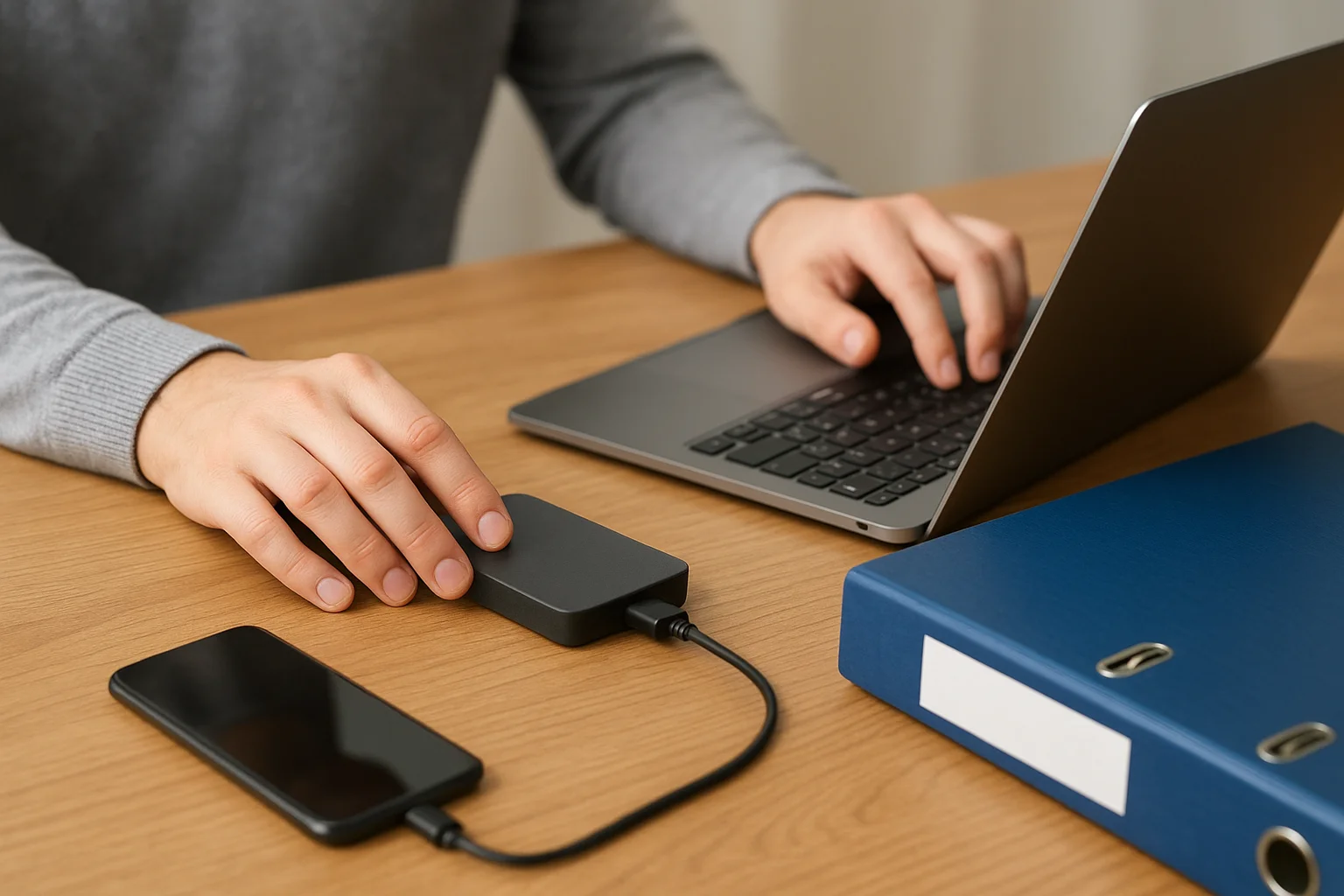
Local Backups: Storing backups on external hard drives or SSDs provides fast access and full control over your data. Consider using multiple drives rotated periodically to reduce the risk of simultaneous failures. Labeling drives with dates can help track backup versions and ensure easy retrieval when needed.
Off-Site Backups: Backing up photos to a separate location, such as a cloud service or a NAS stored in a different physical location, protects against theft, fire, or natural disasters. Cloud solutions often include automatic syncing, version history, and encrypted storage, adding layers of security without manual effort.
Incremental vs Full Backups: Full backups duplicate your entire library, providing a complete snapshot, while incremental backups only save changes since the last backup. Combining both strategies can optimize storage space while ensuring that your library remains fully protected.
Testing Backups: A backup is only effective if it works. Periodically test your backup files by restoring a few photos to verify that the process is reliable and that files are intact. This step ensures peace of mind and avoids unpleasant surprises during emergencies.
Finally, integrating backup automation tools can simplify the process, reduce human error, and maintain a routine even during busy periods. Reliable backups, both local and remote, form the cornerstone of long-term photo library protection.