A home office mixes tax PDFs, client folders, photo dumps, and the one spreadsheet you cannot recreate from memory. One failed laptop disk or a ransomware pop-up can wipe that stack if copies only live on the same machine. A disaster-proof routine is less about fancy gear and more about clear priorities, automation, and restores you have actually tried.
Use this as a practical blueprint: decide what matters, pick local plus offsite copies, automate the boring parts, and schedule tests. It pairs cleanly with the classic 3-2-1 backup rule and with tools like our backup time calculator when you size overnight windows.
Map the risks and the data that actually matters
Home offices fail in predictable ways: dropped laptops, power spikes, stolen bags, silent SSD wear, accidental deletes, and malware that encrypts both the PC and the plugged-in USB drive. Cloud-only sync is not a full backup if you overwrite a good file with a bad one and every device mirrors the mistake.
List data in tiers. Tier A is irreplaceable work product and identity documents. Tier B is large media you could reshoot or redownload at a cost. Tier C is caches and installers you can ignore. Back up A daily, B on a weekly cadence, and skip C. That triage keeps jobs short enough that you will not disable them later.
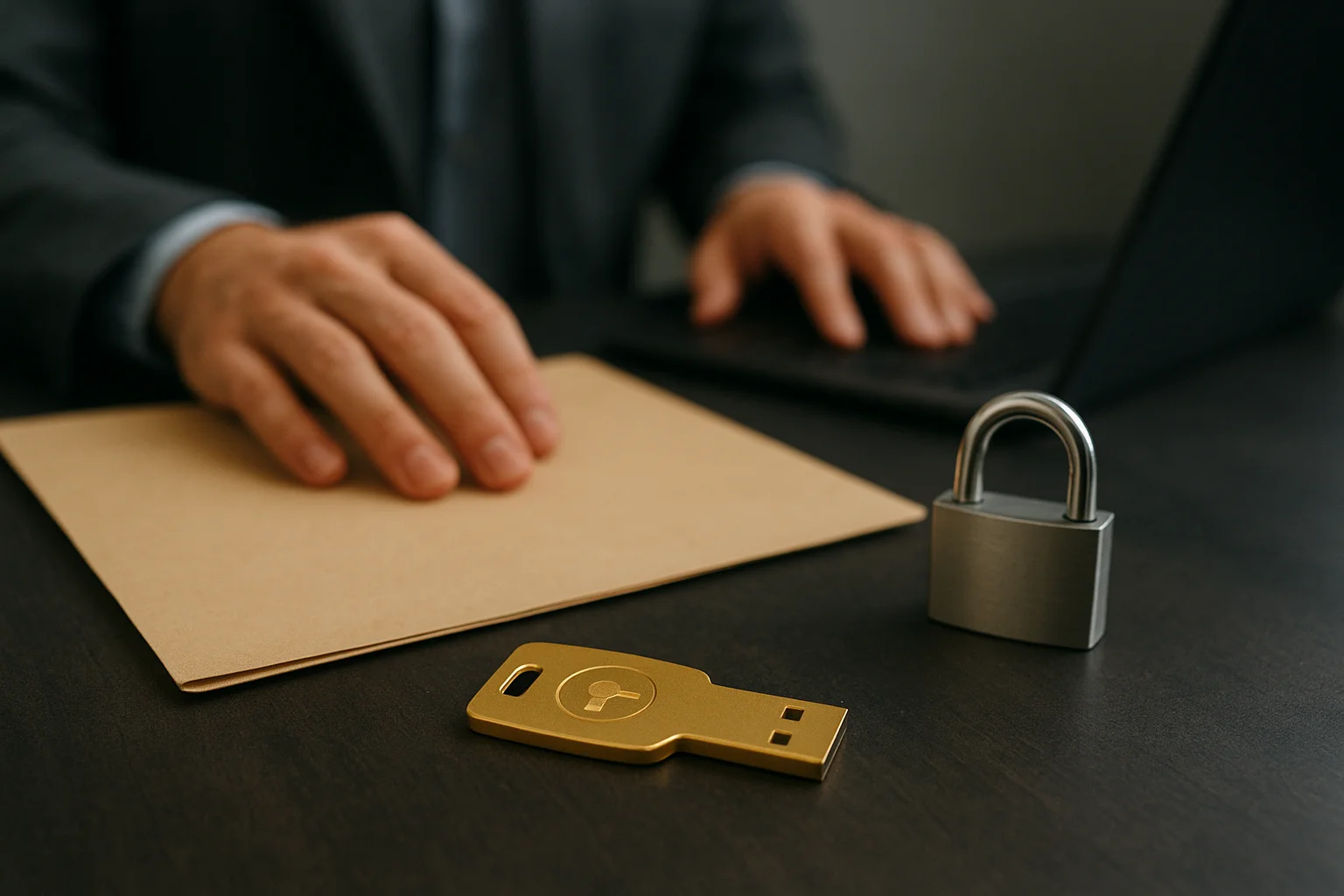
Note where files live today: Documents, desktop chaos, phone camera rolls, SaaS exports. If half your business sits in a web app, schedule periodic exports, not only disk images. Include email archives and password-manager emergency kits in Tier A even if they feel "already in the cloud." Encryption belongs on Tier A archives; store recovery material with an offline key habit so a stolen drive is inconvenient, not catastrophic.
Write the inventory once on paper or in a note you will still open next year. Include approximate sizes. A 40GB photo year and a 4GB documents tree need different media and windows. Guessing leads to overnight jobs that still run at breakfast, which is how people turn backups off.
Build a hybrid backup stack you can afford
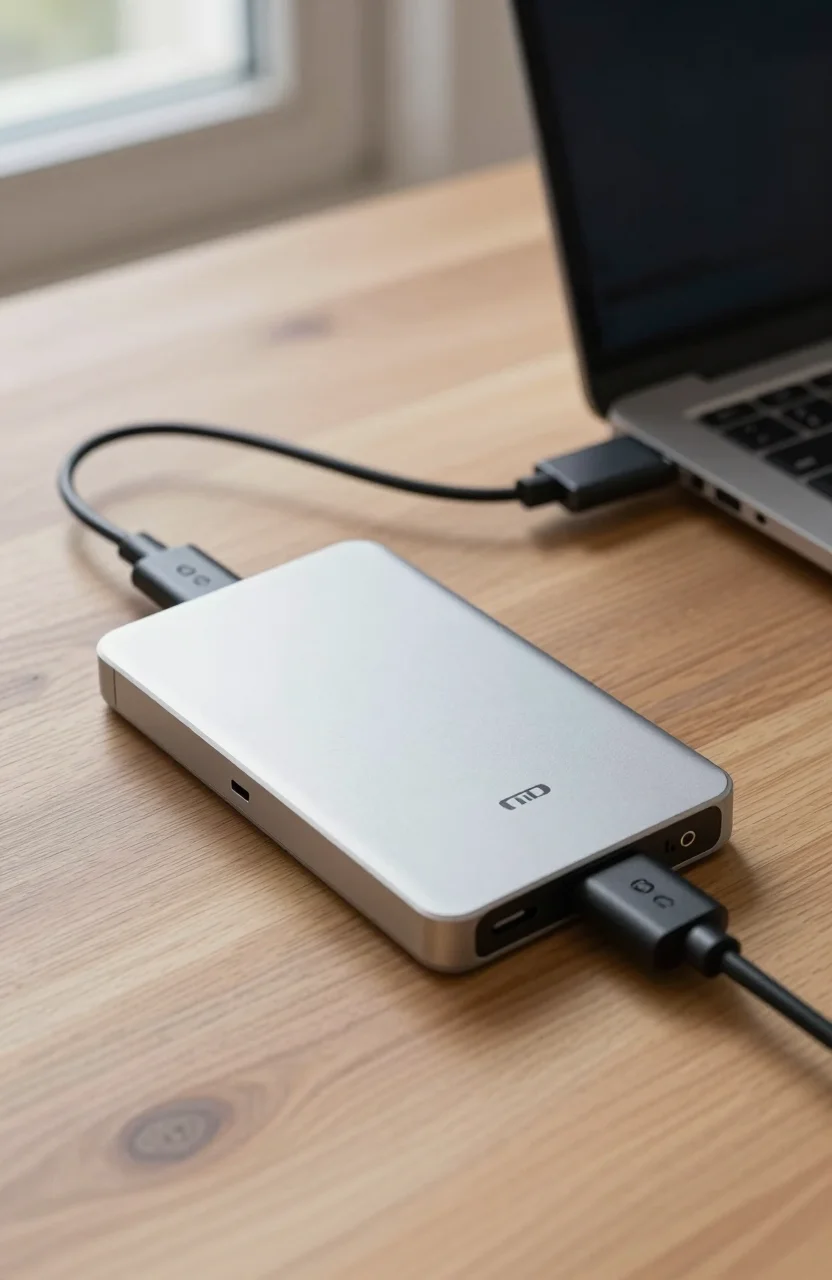
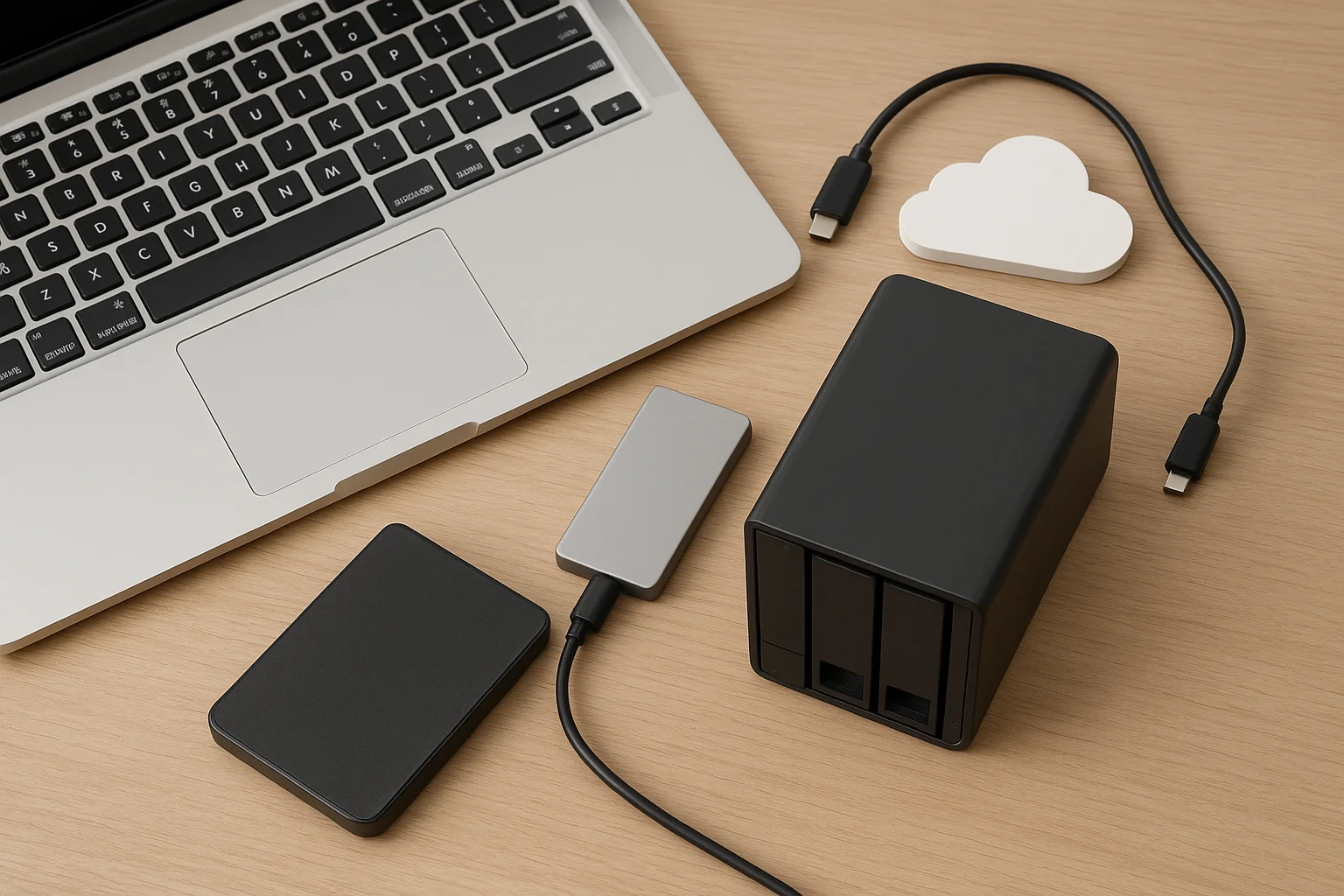
A resilient home stack usually has three pieces. First, a fast local copy on an external SSD or DAS for quick restores after a hardware failure. Second, a bulk HDD or NAS copy for version history. Third, an offsite or cloud copy that survives fire and theft. Price the mix with our cloud vs local cost analysis instead of guessing.
Hardware does not need to be exotic. A reputable portable SSD handles the daily local clone; browse portable SSDs under $150 if budget is tight. Capacity archives can sit on spinning disks from the external storage section, parked on a schedule so they are not always online for ransomware. Households that share files often prefer a compact NAS such as the setups in our DS224+ starter guide, with CMR drives sized for growth.
Automation beats memory
Use the OS or a dedicated backup app to run jobs when the machine is idle. Prefer incremental forever or synthetic fulls so nightly runs stay short. Keep the backup disk unmounted when idle if your threat model includes ransomware that hunts attached volumes. Label drives and rotate an offsite disk weekly if you skip cloud. Name jobs after what they protect ("Tax2024-local") so you can disable one without breaking the rest.
Bandwidth caps matter for cloud. Cap upload during work hours and let large seeds finish overnight. For first-time cloud backups of multi-terabyte libraries, a local-heavy start with a later offsite seed often frustrates less than a week of saturated Wi-Fi.
Test restores before you trust the routine
Untested backups are optimistic files. Once a month, restore a random Tier A folder to a temporary location and open the files. Once a quarter, practice a fuller recovery: new user profile, or a spare laptop. Write down the steps in plain language so future-you is not guessing under stress.
Versioning matters as much as raw copies. Keep enough history to roll back a week of bad edits or encrypted files. Watch free space alerts; a full backup target fails silently more often than people expect. Confirm cloud jobs finish, not only that they started. If a job reports "completed with errors," read the log the same day.
Security hygiene sits beside backup. Patch the OS, use MFA on cloud accounts, and be careful with unknown USB media as covered in our USB skimming safety guide. A clean restore is useless if the same phishing kit lands again the next morning.
Plan for specific disaster scenarios
Laptop death: boot a rescue environment or attach the drive to another PC, then restore from the local SSD copy. Theft of the office bag: rely on the offsite or cloud copy and revoke sessions on password-manager and SaaS accounts. Ransomware: power down, keep backup disks offline, and restore to a clean system image. Flood or fire: only the offsite copy counts; review whether that copy is far enough away.
Document contacts and license keys offline. Keep a printed note of where backups live and which encryption passwords are stored in your manager. If you freelance, agree with clients where deliverables are duplicated so a personal outage does not erase shared work. For families sharing one PC, give each person a folder tree the backup job already includes so nothing important lives only on a Desktop shortcut.
Keep the routine small enough to maintain
Review the plan every six months. Capacity needs grow; old drives age out. Recalculate how long jobs take and trim Tier B if nights overrun. Replace backup disks on a schedule rather than waiting for SMART failure. When money is limited, protect Tier A first with one local and one offsite copy before you buy a four-bay tower you will not configure.
A disaster-proof home office backup is a habit loop: classify data, copy it in more than one place, automate, test, adjust. Do that consistently and most "data loss" stories become inconveniences instead of business-ending events.